Agency billing
From billable hours to a Mercury invoice: an agency workflow
Review completed billable time, reconcile saved rates, and manually create a Mercury invoice for review. A worked TrackTimer example with clear limits.
By Michael Pfister · · 5 min read

Turning time into an invoice should leave a record you can explain. In TrackTimer, an owner or administrator selects a client and billing period, previews completed billable work, and creates an invoice in Mercury. Creation is manual. TrackTimer does not schedule invoice creation or send the invoice to your client. You review and send it from Mercury.
This guide uses illustrative data, not a customer invoice or a claim about time saved. It describes the current TrackTimer workflow; access to Mercury invoicing depends on your Mercury account and integration setup.
What you need before you begin
You need an owner or administrator role in TrackTimer, a recent passkey verification for protected changes, and a Mercury connection set up in Integrations. Choose sandbox for testing or live for real invoices. The connection needs account and customer access, and Mercury checks invoice-write permission when you create an invoice. See Mercury's invoicing requirements and token security guidance, including any required IP allowlisting.
Create the customer in Mercury first. TrackTimer lets you choose an existing Mercury customer and an eligible deposit account; it does not create the customer for you. Confirm that completed time entries have the intended client, project, billable status, and saved billing rates. Contractor pay rates are separate and must not become client billing rates.
1. Review the time before creating an invoice
Start with a weekly time review. Correct accidental timers, unclear descriptions, wrong projects, and billability before opening the invoice preview. A running timer is not a completed invoice entry. Voided and nonbillable entries are excluded.
An assistant connected through TrackTimer MCP can help you operate your own timer and review or correct your own time within its authorized scope. That is separate from the administrator's Mercury workflow: the public API and MCP do not create Mercury invoices. Agent control is also different from automatically reconstructing a day of activity.
2. Choose a client and billing period
Open Invoices, select the client, and choose Last month, This month to date, or Custom dates. The date range is inclusive and uses UTC. Completed entries are assigned in full based on their start date; an entry crossing a period boundary is not split between invoices.
A weekly billing routine can use a custom date range. It is a routine you perform, not a scheduled background job. Review the period carefully if your working timezone differs from UTC.
3. Reconcile the preview with a known example
Suppose one client's website project has these completed entries. All example amounts are USD.
| Work | Duration | Saved billing rate | Included value |
|---|---|---|---|
| Design | 2h 45m | $120/hour | $330 |
| Development | 4h 15m | $150/hour | $637.50 |
| Internal rework, marked nonbillable | 1h | — | $0 |
| Billable total | 7h | $967.50 |
The team recorded eight hours, but seven are billable. TrackTimer uses the billing rate saved with each entry. It totals seconds multiplied by that rate for each project, then rounds each project's amount once to the nearest cent. It does not round each session up to a 6- or 15-minute block.
Each project becomes one invoice line with quantity one and its calculated dollar amount. For this single-project example, the line is $967.50. Zero-dollar project lines are omitted. Review the billable-hours calculation guide if you need to distinguish decimal hours, display rounding, and contractual billing rules. The standalone billing timer can illustrate different rounding choices, but it does not change TrackTimer's invoice calculation.
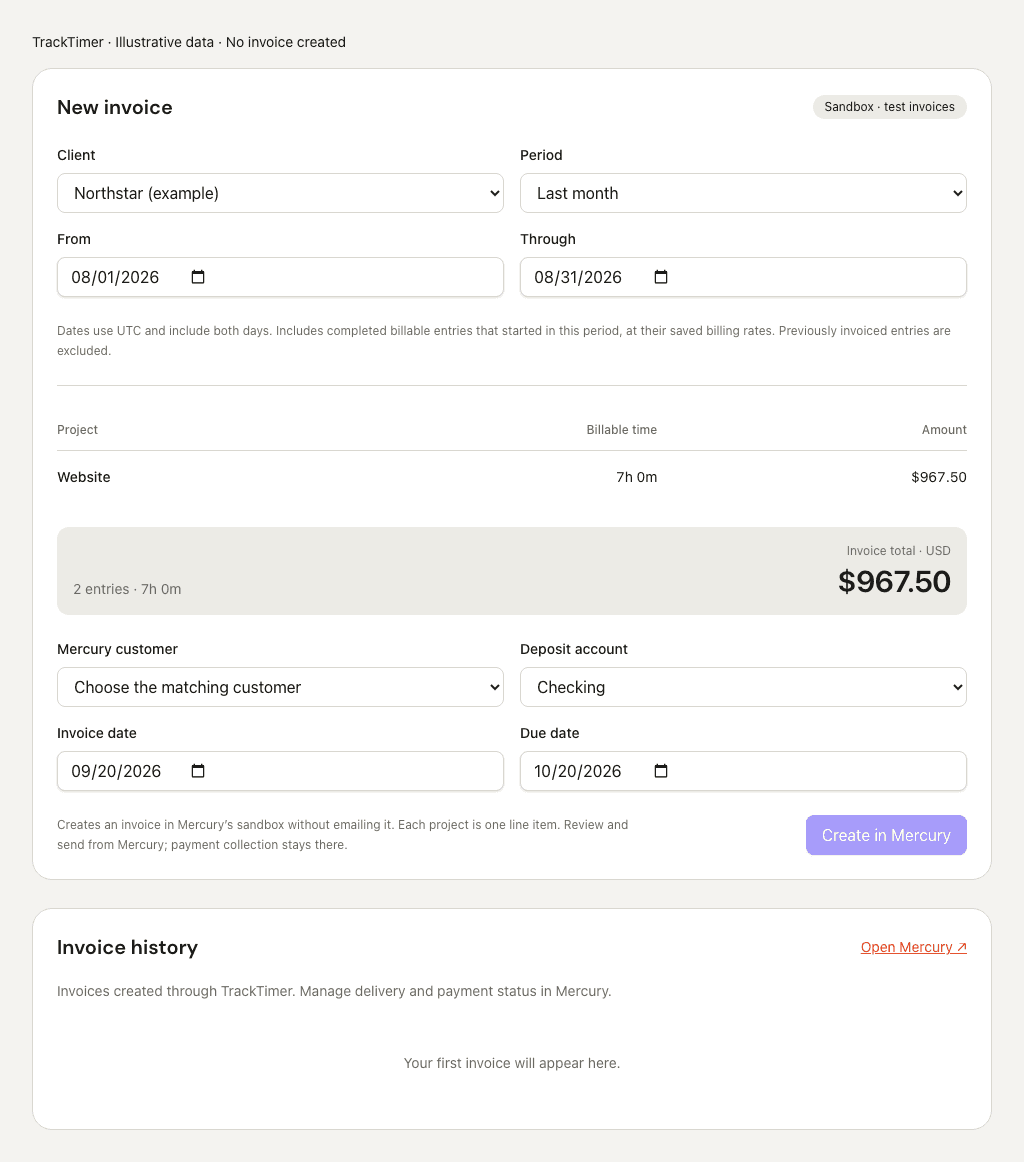
Actual TrackTimer invoice interface, populated with synthetic responses for this example. No account data was read and no invoice was created.
4. Create, then review in Mercury
Select the Mercury customer and deposit account, set the invoice and due dates, and check the preview. Creating the invoice is an explicit action. If the time or integration connection changes after preview, refresh the preview before creating it.
TrackTimer creates a USD invoice without sending an email. Review its line items and customer details in Mercury, then send it when ready. The current integration uses bank-transfer instructions; card and ACH-debit options are disabled in the creation request. Mercury handles the downstream payment workflow.
5. Handle uncertain results without duplicate billing
A confirmed provider rejection can release the selected time for a retry. An uncertain response can instead show Needs review; an interrupted creation may remain Creation pending. Check Mercury for the recorded invoice number before taking further action. TrackTimer reserves the selected time to reduce the risk of creating another invoice for the same work.
Do not interpret an uncertain result as proof that no invoice exists. The current app has no self-service reconciliation or reservation-release screen. Resolve the existing record before attempting to bill that time again.
What happens after creation?
The history shows the latest 100 invoices created through TrackTimer and their creation status. It is not a payment-status ledger, and it does not import invoices created elsewhere. Editing time afterward does not update the existing invoice or automatically rebill the entry; handle invoice corrections in Mercury.
For fixed-fee work, recorded hours help explain delivery cost, but they do not by themselves set the agreed invoice amount. Use the project profitability example and profitability calculator to examine that separate question.
If you are still choosing software, the AI time tracking comparison for agencies distinguishes capture, assistant access, review, and invoicing across tools. A useful workflow gives each of these steps a clear owner.